
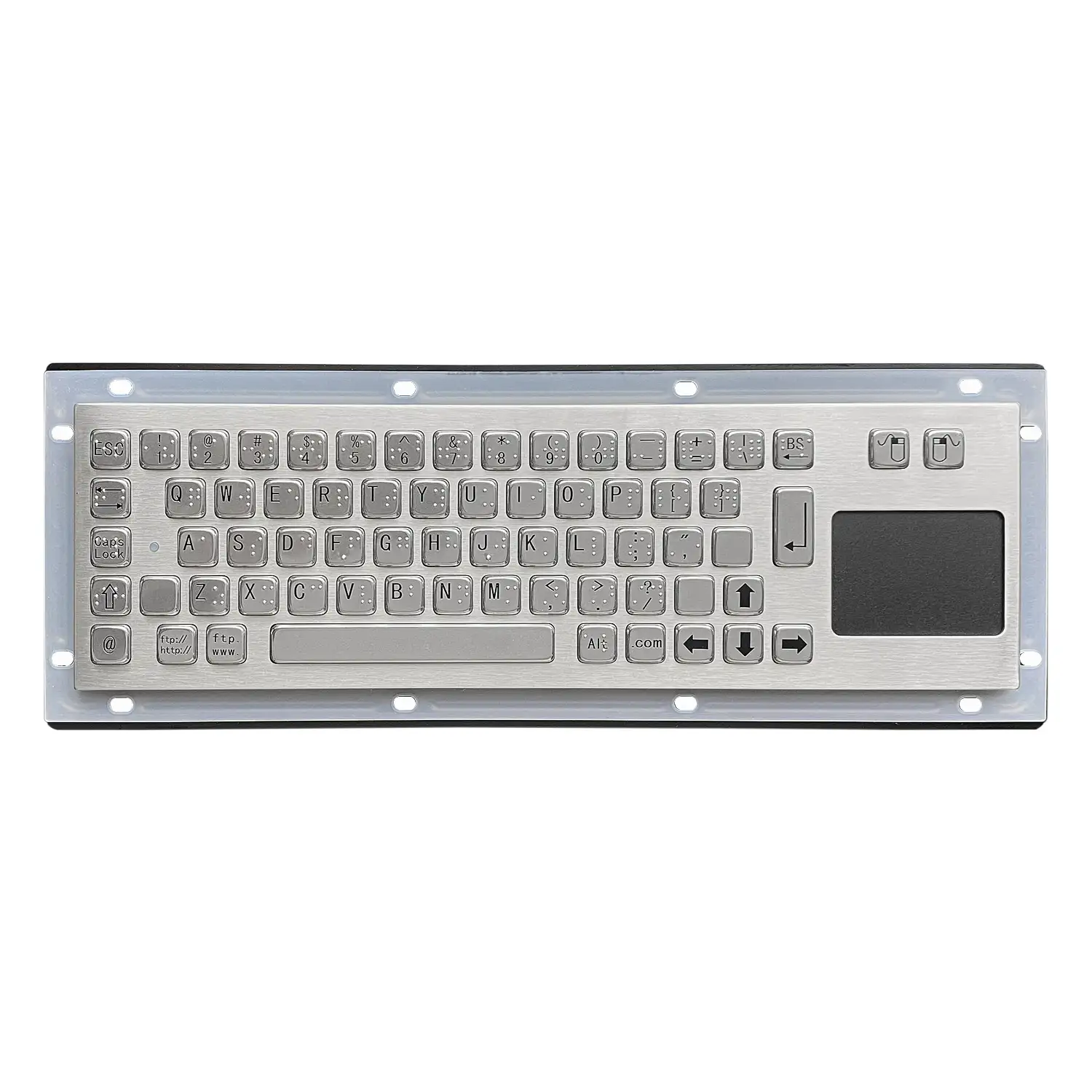
Troubleshooting Common Industrial Keyboard Faults
Keys Not Responding
When some or all keys stop working, start with the connection rather than the keyboard. Unplug the cable and plug it back in, then try a different USB port, then a different computer entirely. Those three steps separate a host-side problem from a keyboard-side one without any tools. If the keyboard is dead on a second machine as well, the fault is in the keyboard's own circuitry and the unit will need replacement. Note whether the failure is total or partial before you swap anything, because a single dead zone points to a different cause than a completely unresponsive board and that detail is worth passing to the supplier when you request a replacement.
Keys Sticking or Bouncing
Sticking keys, or keys that register twice from a single press, are usually a contamination problem rather than a failure. Dust, debris and liquid spills all cause it. Switch the keyboard off and unplug it, then clean the key surfaces with a soft cloth or a can of compressed air, working around each key rather than pressing down on it. Let the unit dry fully before reconnecting. If the symptom returns quickly after a proper clean, the switches underneath have worn out and the affected parts need replacing. Persistent contamination on a supposedly sealed unit is also a signal that the protection rating no longer matches what the installation is throwing at it.
Erratic Cursor Movement
When a keyboard with an integrated pointing device produces jumping or drifting cursor movement, check the physical link first. Confirm the keyboard is properly plugged in, or properly paired if it connects over Bluetooth or another wireless protocol. If the connection is sound, move to software. Outdated drivers, conflicting software and other input devices competing for the same interface all produce this symptom. Update the keyboard drivers, remove or disable whatever software is conflicting, and if that fails reset the device to its default settings. Working in this order avoids replacing hardware that was never faulty, which is the most common and most expensive mistake with pointing device complaints.
Backlight Failure and Wrong Characters
Two faults look alarming and are usually trivial. If the backlight is dead, check the brightness setting before anything else, then check that the keyboard cable is seated correctly. If both are fine, the backlight module itself has failed and needs replacing, which does not affect the rest of the keyboard's function. If the keyboard is producing the wrong characters, this is almost always a language setting mismatch: confirm that the operating system's keyboard language matches the physical layout of the unit. Only when the language settings genuinely match should you suspect the keyboard's firmware or software, in which case an update is the next step.
Beeping and Host Not Recognising the Keyboard
A beeping keyboard normally means a stuck key or a short circuit. Check each key for one that is jammed down. If nothing is stuck, unplug the unit and inspect the cable and connectors for visible damage. Cable and connectors intact but the beeping continues points to the internal wiring and the keyboard will need replacing. When the host does not recognise the keyboard at all, try a different USB port and then a different computer, and confirm the cable is properly connected at both ends. A keyboard that is invisible on two different hosts with a known good port has a circuit board fault.
Premature Wear and Specification Mismatch
Some complaints are not faults but a mismatch between the unit and the duty. A keyboard that keeps getting physically damaged was built to a lighter standard than the environment requires, and no amount of repair will change that; the answer is a more robust model. Keys that wear out quickly usually indicate genuinely heavy and continuous use beyond what the original selection assumed. Before ordering a replacement, record the actual duty: hours per day, glove use, cleaning regime and what reaches the surface. That record turns the next purchase into a specification exercise rather than a repeat of the same choice, and it is the single most useful thing a maintenance team can hand to a buyer.
Products Mentioned
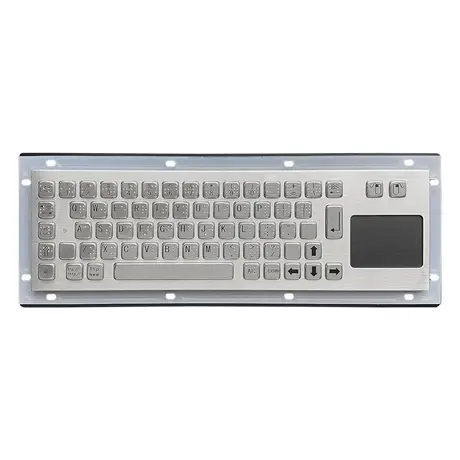
67 Key Metallic Keyboard With Braille KY-PC-NT3 BR
View Specification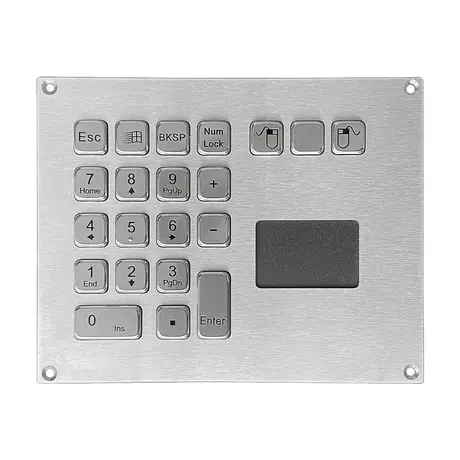
IP65 Mini Keyboard With Trackpad KY-PC-VG160T
View Specification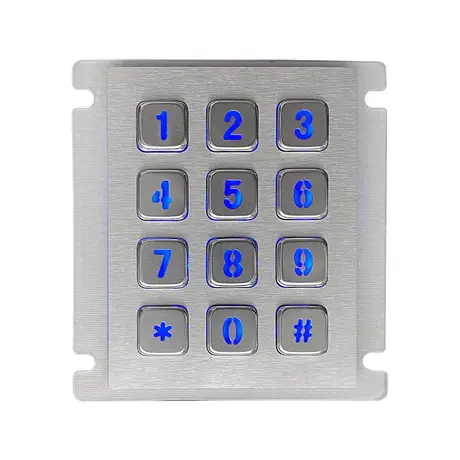
12 Key Industrial Backlight USB Keypad KY2068A-LED
View Specification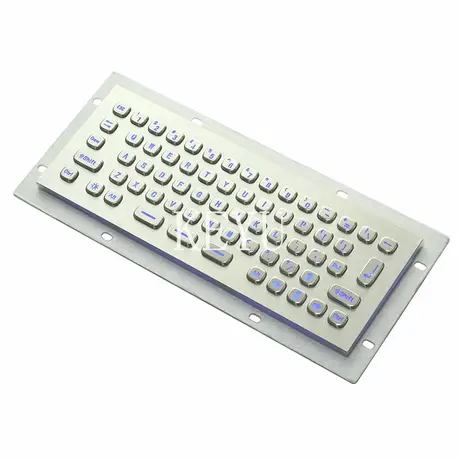
KY-PC-MINI-LED Backlit Metal Keyboard With SUS304 Panel
View Specification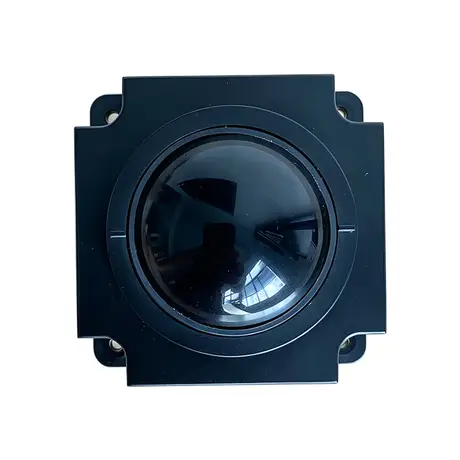
Industrial 50mm Trackball Module KY-MS-MH50-BRS-A
View Specification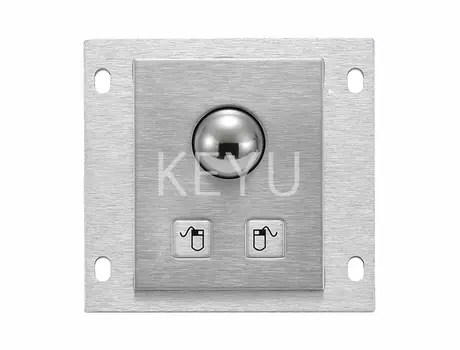
KY-PC-25G 25mm Metal Trackball Module With Two Keys
View SpecificationQuestions On This Topic
My keyboard stopped working. What do I check first?
Why are my keys sticking or double-registering?
The keyboard types the wrong characters. Is it broken?
What does it mean when an industrial keyboard beeps?
Put This Into A Specification
Send us the application and we will tell you which of these choices actually matter for your terminal.