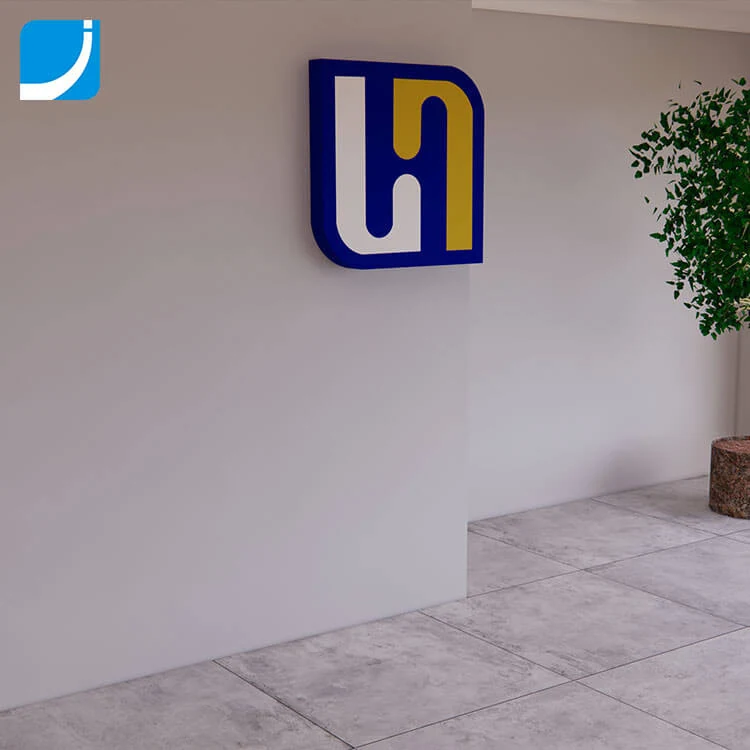
3 Colors LED Lightbox Made by 3D Printer for Channel Letters Logos Signages
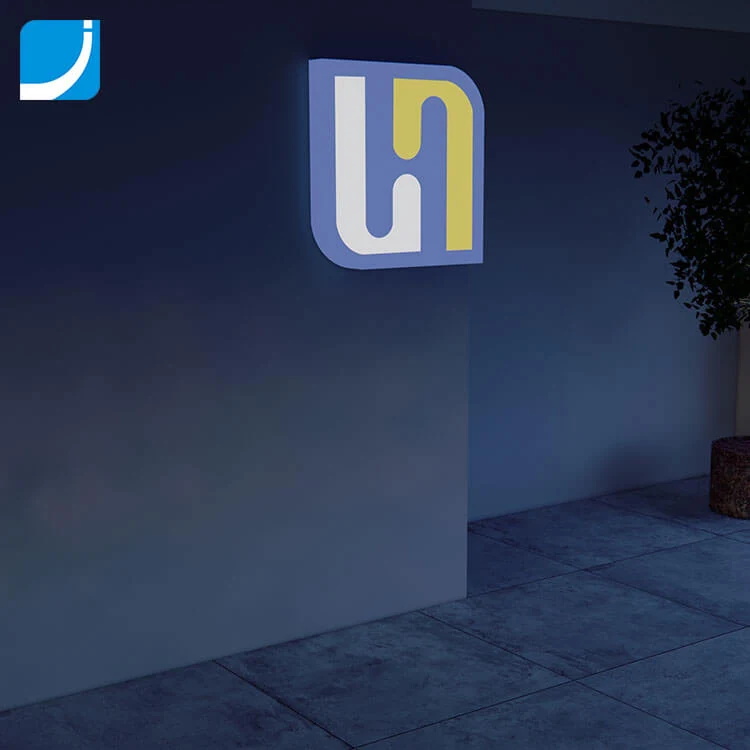
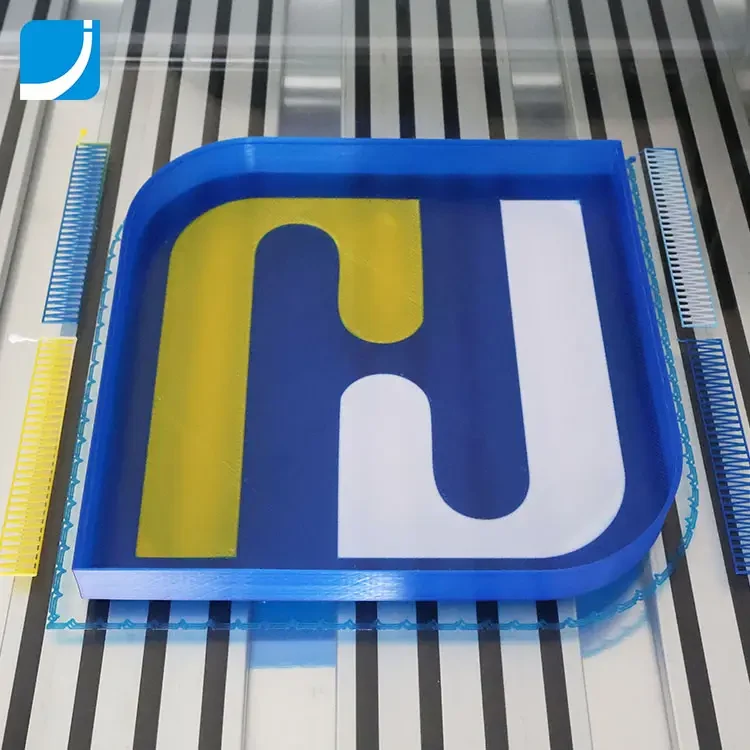
Three face colours are printed into the part rather than applied on top of it
View product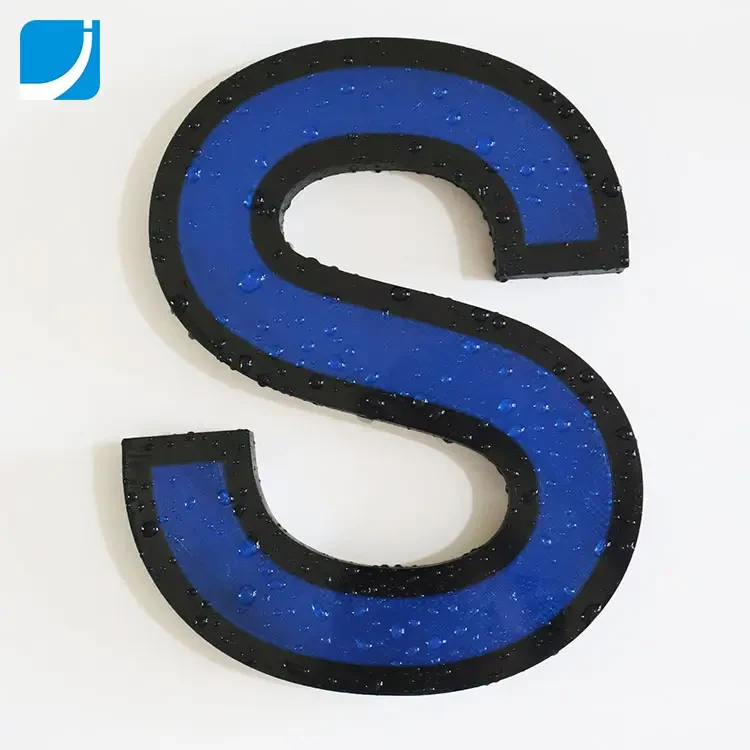
A two colour face panel is not UV printing, not a solid acrylic panel and not a liquid acrylic panel. It is produced in the slicer. These are the steps that get it right.
Prepare the artwork in CorelDRAW and export a DXF. Import it into the slicing software, click Ext. 2 and click the inner part of the file so the inner part turns pink. That selection is what the second colour will follow.
Click Combine, then Horizontal Mirror. Mirroring at this stage is what makes the printed face read correctly once it is turned over, and it is the step most often forgotten on a first job.
Click Fill and tick Panel Filling, then set the parameters to your requirement. Select the DXF file before setting the output parameters in the right hand column.

Select reverse print, select line for letter type, and set the letter height. In the source example this was 30 mm, which is a typical return depth for a storefront letter.
Set Colour Switch to the colour arrangement you want. In Footstep, tick the first effective but not the second: the first is for the bottom panel and the second is for the face panel. If the bottom panel is 3 mm thick, set 4 mm for the first effective, which is 1 mm more than the panel thickness.
Tick panel colour, set the height you want, and select separate extruder 1 for fill type 1. The printer adds one more layer, so a 1.2 mm setting for fill type 1 prints as expected.

Click get path, tick baseplate to save the DXF for the bottom panel, and output the G-code. Check the result in 3D Preview before printing: the two colours on the face panel should be visible there exactly as they will print.
Three face colours are printed into the part rather than applied on top of it
View productThe trim edge is printed into the face instead of being an applied trim cap
View productKeeps the slicing licence with the workshop rather than tied to one computer
View productReproducing a three colour face conventionally means three cut acrylic panels bonded together, or one panel with two app...
Read moreOn a fabricated letter that outline is a plastic trim cap pushed around the face. It is fitted by hand, it discolours at...
Read moreAdvertising producers win on how quickly they can turn a concept into something a client can stand in front of. Printing...
Read moreEvery stage between an approved drawing and a lit sign on a wall, and what usually goes wrong at each one. This is the w...
Read moreAnswers to what buyers ask before ordering this topic.
No. It is neither UV printing, nor a solid acrylic panel, nor a liquid acrylic panel. Both colours are printed in PETG-S as part of the face.
The first effective setting applies to the bottom panel. Setting it 1 mm above the panel thickness is what the source procedure specifies.
Yes, in 3D Preview, before any material is used.
Our technical team will help you apply it to your own machines material and artwork.